Sociosight Logo
  • Home
  • About
  • Insight
  • Schedule a Demo
  • Pricing
  • Login
  • English
    • Bahasa Indonesia
  • Home
  • About
  • Insight
  • Schedule a Demo
  • Pricing
  • Login
  • English
    • Bahasa Indonesia
Sign Up for Free
Sociosight Logo
  • Home
  • About
  • Insight
  • Schedule a Demo
  • Pricing
  • Login
  • English
    • Bahasa Indonesia
  • Home
  • About
  • Insight
  • Schedule a Demo
  • Pricing
  • Login
  • English
    • Bahasa Indonesia

Scheduling and Publishing

  • How to Use Sociosight’s AI Content Writing Wizard to Generate Engaging Social Media Content
  • How to Use the Ideation Board in Sociosight
  • How to Schedule and Publish Your YouTube Video through The Sociosight App?
  • How To Publish and Schedule Your Social Media Post Across Multiple Platforms Via Sociosight App?

General

  • Why Workspaces Matter — and How to Set Them Up in Sociosight for Smarter Social Media Management
  • 5 Ways This Social Media Manager Tool Transforms How Agencies Manage Multiple Brands and Clients
  • How to Bind or Connect Your Social Media Profiles Into The Sociosight App
  • How to Register and Login to The Sociosight Web App
  • What Is Sociosight, The All-In-One Social Media Content Management Software?
View Categories
  • Home
  • Help
  • Scheduling and Publishing
  • How To Publish and Schedule Your Social Media Post Across Multiple Platforms Via Sociosight App?

How To Publish and Schedule Your Social Media Post Across Multiple Platforms Via Sociosight App?

9 min read

0:00 / 11:35
  • View as Markdown Open this page as plain Markdown (opens in a new tab)
  • Open in ChatGPT Ask questions about this page (opens in a new tab)
  • Open in Claude Ask questions about this page (opens in a new tab)
  • Open in Google AI Studio Ask questions about this page (Google account required) (opens in a new tab)

Managing multiple social media accounts can feel overwhelming, but with Sociosight, it’s a breeze.

As one of the most versatile social media scheduling tools, Sociosight allows you to simultaneously publish and schedule content across platforms like Facebook Pages, Instagram Business accounts, Pinterest, LinkedIn Profiles, and LinkedIn Company Pages using its powerful Calendar feature.

If you’re looking to schedule social media post YouTube Shorts or regular videos, we’ve got you covered—check out our dedicated tutorial here. For TikTok, head to the Post > TikTok Publish menu to publish and schedule your content. Excitingly, we’re working on enabling simultaneous YouTube and TikTok scheduling directly via the Calendar feature—stay tuned for this upcoming update!

Below is a step-by-step guide to help you make the most of Sociosight’s publishing and scheduling capabilities. Prefer watching a video? Check out our YouTube tutorial or follow along with the detailed instructions below!

Video Tutorial to Publish and Schedule Social Media Post Across Platforms Via Sociosight Dashboard #

For a quick and easy walkthrough of the process, watch the video tutorial below. It will guide you step-by-step on how to publish and schedule your posts across multiple social platforms using the Sociosight dashboard.

Whether you’re scheduling for Facebook Pages, Instagram Business, Pinterest, LinkedIn Profiles, or LinkedIn Company Pages, this video covers it all! If you’re a visual learner, this is the perfect way to see the Sociosight app in action.

Hit play and start mastering the art of streamlined social media scheduling tools! 👇

YouTube player


Steps to Publish and Schedule Your Posts Through Sociosight, one of Most Intuitive Social Media Scheduling Tools in the Market. #

Sign Up and Connect Sociosight App #
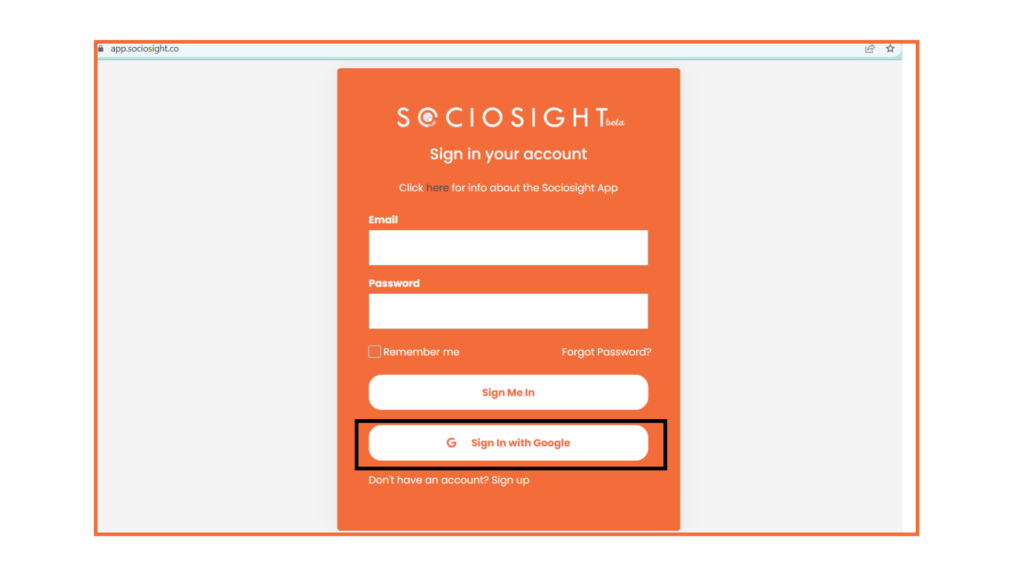
If you’re not yet a registered user of the Sociosight app, it’s time to join the community! Sign up today and unlock the power of Sociosight, the most simplest social media scheduling tools.

Social media management tools - Menjadwalkan Postingan

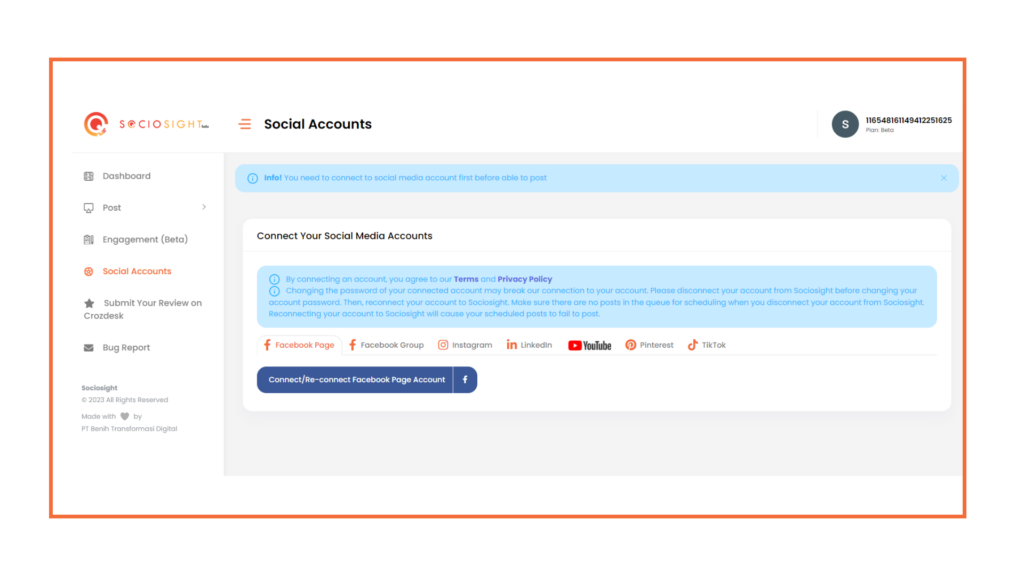
Once you’re registered, seamlessly connect your social media profiles to the app, representing your brand across various platforms. Follow the instructions in this tutorial to start using Sociosight as your social media scheduling tools.

Social media management tools - Menjadwalkan Postingan

Schedule a Post using the Sociosight Calendar, Social Media Management Tools #

Before publishing or scheduling your social media posts through the Sociosight Calendar, ensure your post meets the guidelines. Reviewing a few key writing requirements for each social media profile is helpful. You can access these guidelines by clicking the (i) icon next to the social media account name on the Post Preview dashboard. Here are some brief guidelines for different platforms:

Do you struggle with managing multiple social media platforms for your brand's presence?

The Sociosight app can help you simplify the process and save you time. With Sociosight, you can publish, schedule, and monitor posts and engage with your followers across multiple social media platforms, all from one dashboard.

Get started today with a free sign-up!
Register Now for Free

Do you struggle with managing multiple social media platforms for your brand's presence?

The Sociosight app can help you simplify the process and save you time. With Sociosight, you can publish, schedule, and monitor posts and engage with your followers across multiple social media platforms, all from one dashboard. 

Get started today with a free sign-up!
FB Page/GroupIG BusinessLinkedIn PagePinterest Pin
The maximum character limit for a post is <5,000, including the URL characters.The maximum character limit for a post is <2,200.The maximum character limit for a post is <700.The maximum character limit for a post is <500.
Post formats allowed:
text only, text & 1-10 images, text & 1 video.
Post formats allowed:
text & 1-10 images, text & 1-10 videos, text & a combination of images and videos (up to a total of 10 media items). The image and video aspect ratio should be the same (1080×1080 or 1080×1350), and for Reels, the aspect ratio should be 1080×1920.
Post formats allowed:
text only, text & 1 image, text & 1 video.
Post formats allowed:
text & 1 image, text & 1 video.
Image/video aspect ratio should be between 16:9 and 4:5. For optimal results, use ratios like 1080 x 1080p (square), 1920 x 1080p (horizontal), 1080 x 1920p (vertical), or 1080 x 1350 (vertical).
Image/video aspect ratio can range from 16:9 to 4:5. For optimal results, use ratios like 1080 x 1080p (square), 1920 x 1080p (horizontal), 1080 x 1350 (vertical), or 1080 x 1920p (Reels).Image/video aspect ratio can range from 16:9 to 4:5. For optimal results, use aspect ratios from 1:2.4 to 2.4:1. Vertical videos will be cropped into a square format.The aspect ratio for images and videos in Pinterest Pins should be between 16:9 and 4:5. For optimal results, consider using the following aspect ratios for standard videos: 1:1 (square), 2:3, 4:5, and 9:16 (vertical size).
Images and videos are published in the Facebook Page or Group feed.Videos are published in the Instagram Feed and Instagram Reels. Single-image posts or carousel format (multiple images) are published in the Instagram Feed.Images and videos are published in the LinkedIn Page Feed.For Pinterest Pins, both images and videos can be published to create engaging content on the platform.
Currently we support a maximum image size of 5MB/image
The maximum video size is 200MB, with a minimum duration of 3 seconds and a maximum duration of 240 minutes.The maximum size for a Reel (9:16 aspect ratio) is 200MB with a minimum duration of 3 seconds and a maximum duration of 15 minutes. The maximum size for a video with a 16:9 or 4:5 aspect ratio is 100MB, with a minimum duration of 3 seconds and a maximum duration of 1 minute.The maximum size for a video is 200MB, with a minimum duration of 3 seconds and a maximum duration of 10 minutes.The maximum file size for a single video is 200MB. Additionally, the video should have a minimum duration of 4 seconds and a maximum duration of 15 minutes.
File Format:
Image: JPEG, JPG, PNG
Video: .MP4 atau .MOV
File Format:
Image: JPEG, JPG, PNG
Video: .MP4 atau .MOV
File Format:
Image: JPEG, JPG, PNG Video: .MP4 atau .MOV
File Format:
Image: JPEG, PNG
Video: .MP4 atau .MOV
 
Currently, as per Meta API Guideline, Sociosight does not support publishing to Facebook Story and Reel.Sociosight is currently under development to support publishing to Instagram Stories. Currently you can post regular image and video Pins. Feature to create Idea Pins is still under development.
How To Publish and Schedule Your Social Media Post Across Multiple Platforms Via Sociosight App?

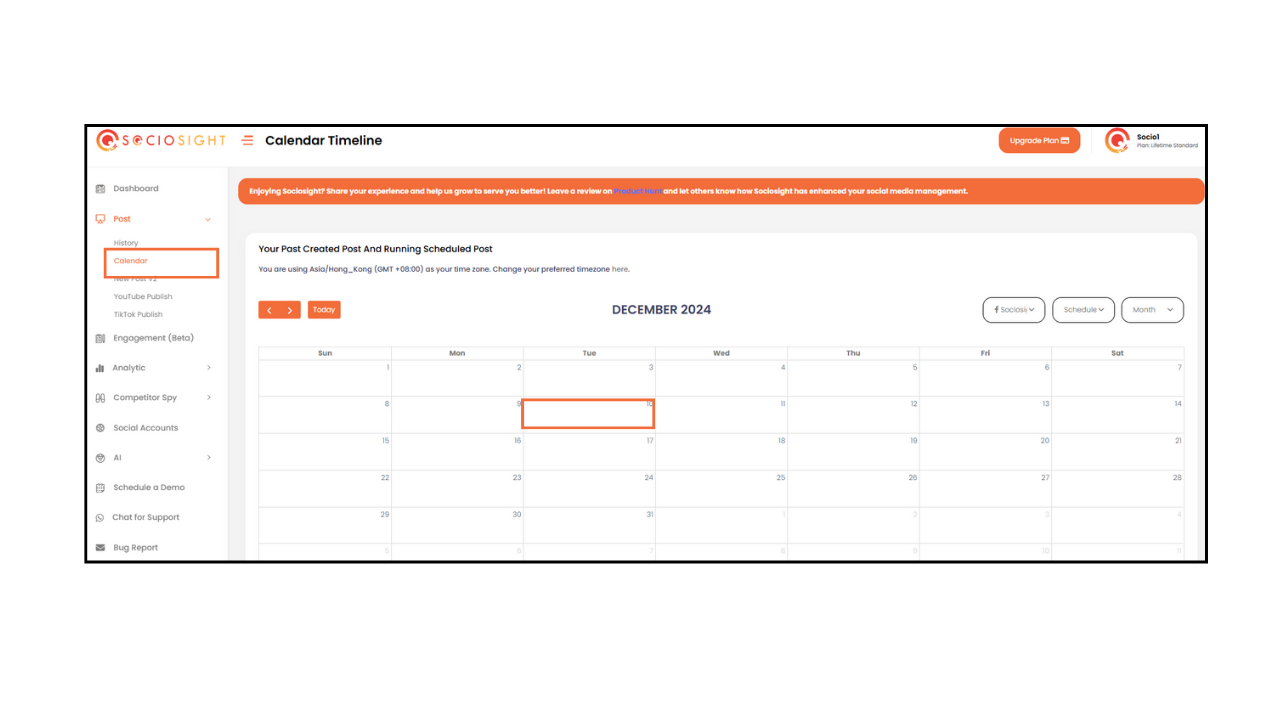
[1] Under the Post menu, click on Calendar.

[2] Point your cursor to the date you want to schedule your post.

[3] A “Click for New Post” button will appear. Click it, and the new post dashboard will pop up.
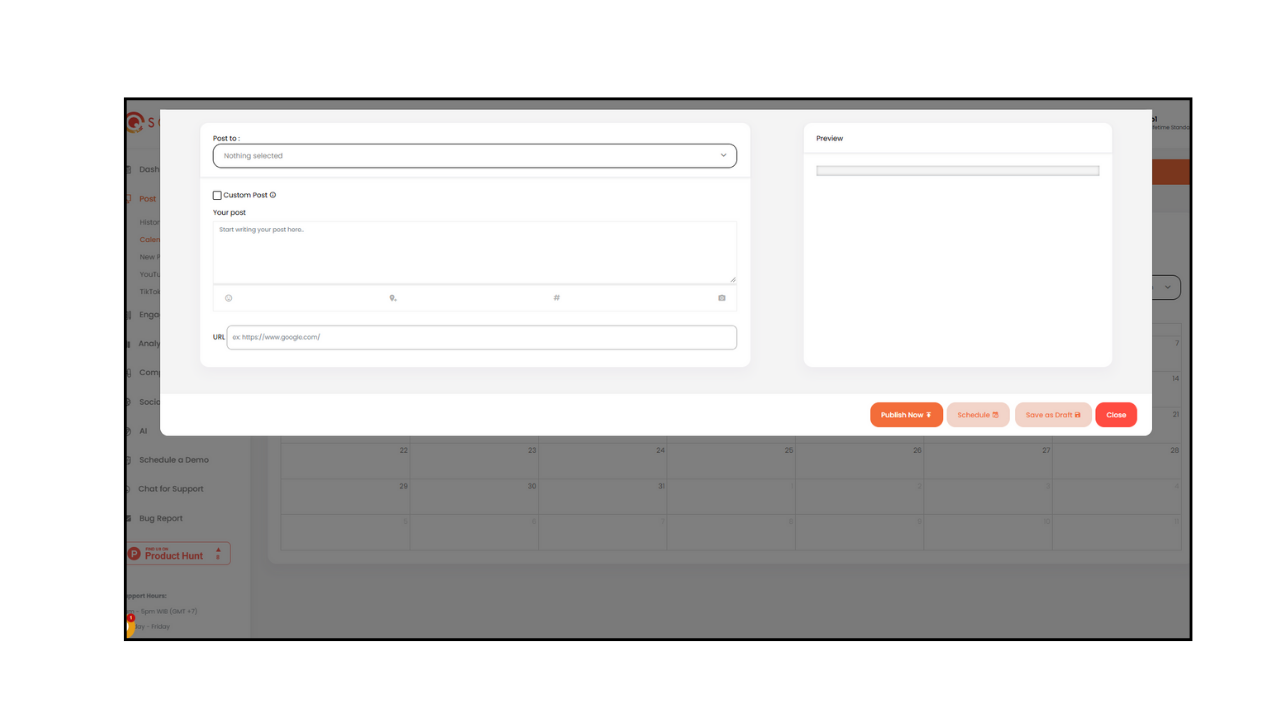
How To Publish and Schedule Your Social Media Post Across Multiple Platforms Via Sociosight App?

[4]From the Drop-Down List, select the social media account where your post will be published.
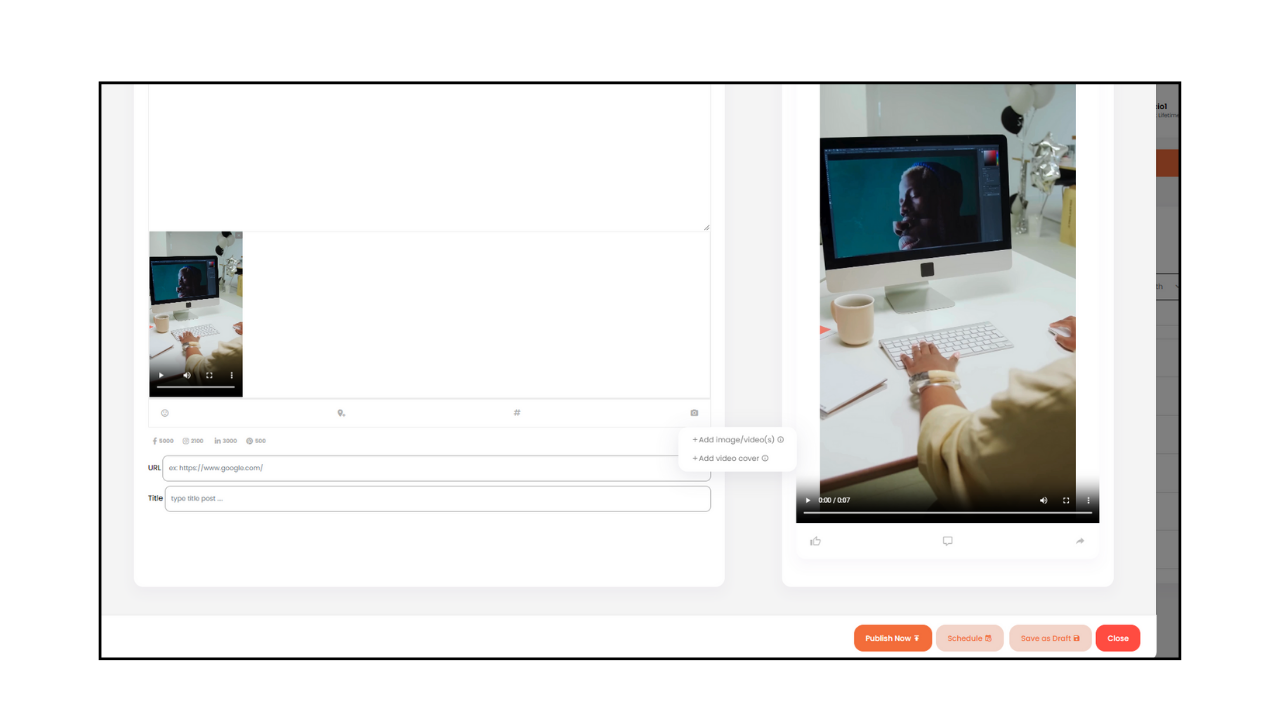
How To Publish and Schedule Your Social Media Post Across Multiple Platforms Via Sociosight App?

[5] Add Media:

Get new posts by email:
Powered by follow.it
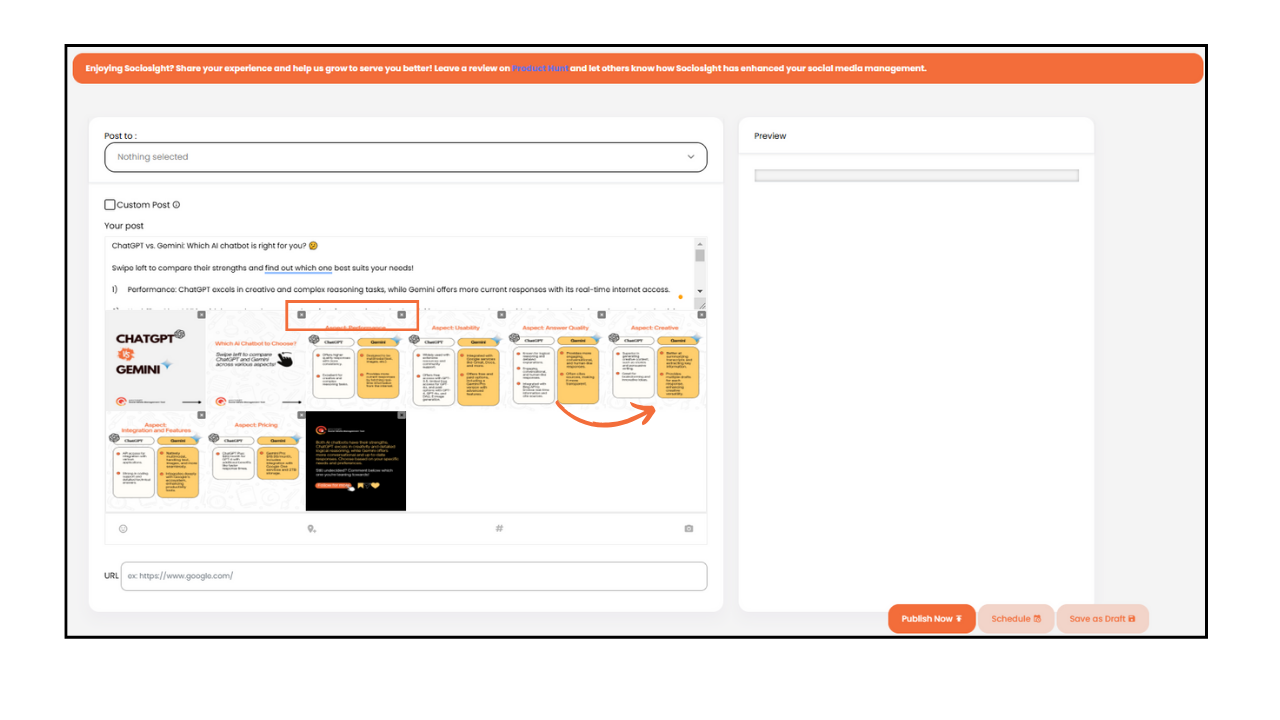
  1. Click the camera icon to add media.
  2. You’ll see two options in the drop-down list: Add Image/Video and Add Video Cover.
  3. Add Image/Video: Ensure your files meet these requirements: Image: Maximum size of 10 MB; Video: Maximum size of 300 MB; Video duration: Minimum: 3 seconds, Maximum: 10 minutes for LinkedIn/Pinterest, 15 minutes for Instagram, 20 minutes for Facebook.
  4. Add Video Cover: If you upload a video for Instagram Reels, you can use the Add Video Cover feature (this feature is only for Reels).
  5. Need to remove a specific image or video from your upload? No worries! Simply click on the (x) icon next to the image to delete it. You have the flexibility to remove one or multiple images as needed.
  6. Want to rearrange your media? It’s simple! Just drag and drop the images into your desired order.
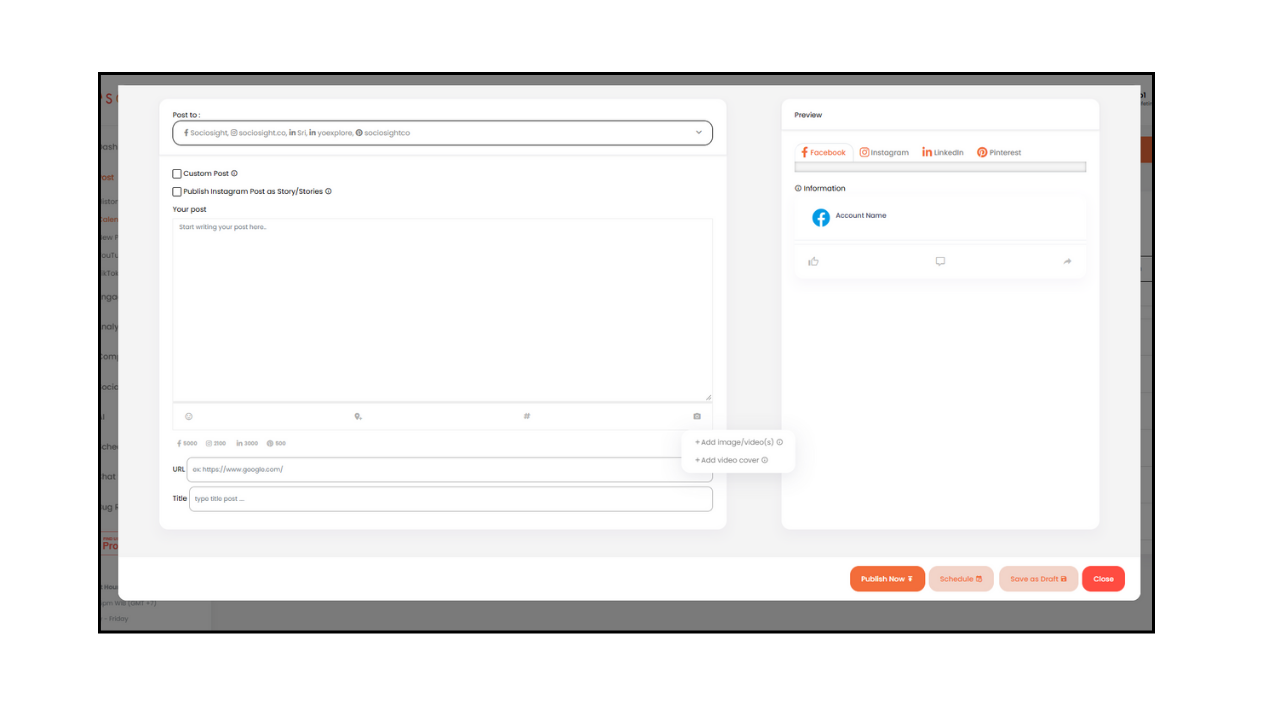
How To Publish and Schedule Your Social Media Post Across Multiple Platforms Via Sociosight App?

[6] Add a Caption:

  1. Enter your caption, keeping in mind the character limits for each platform.
  2. Express with Emojis: Add an extra touch of personality to your post by effortlessly including emojis. Just a few clicks, and your message will be even more engaging.
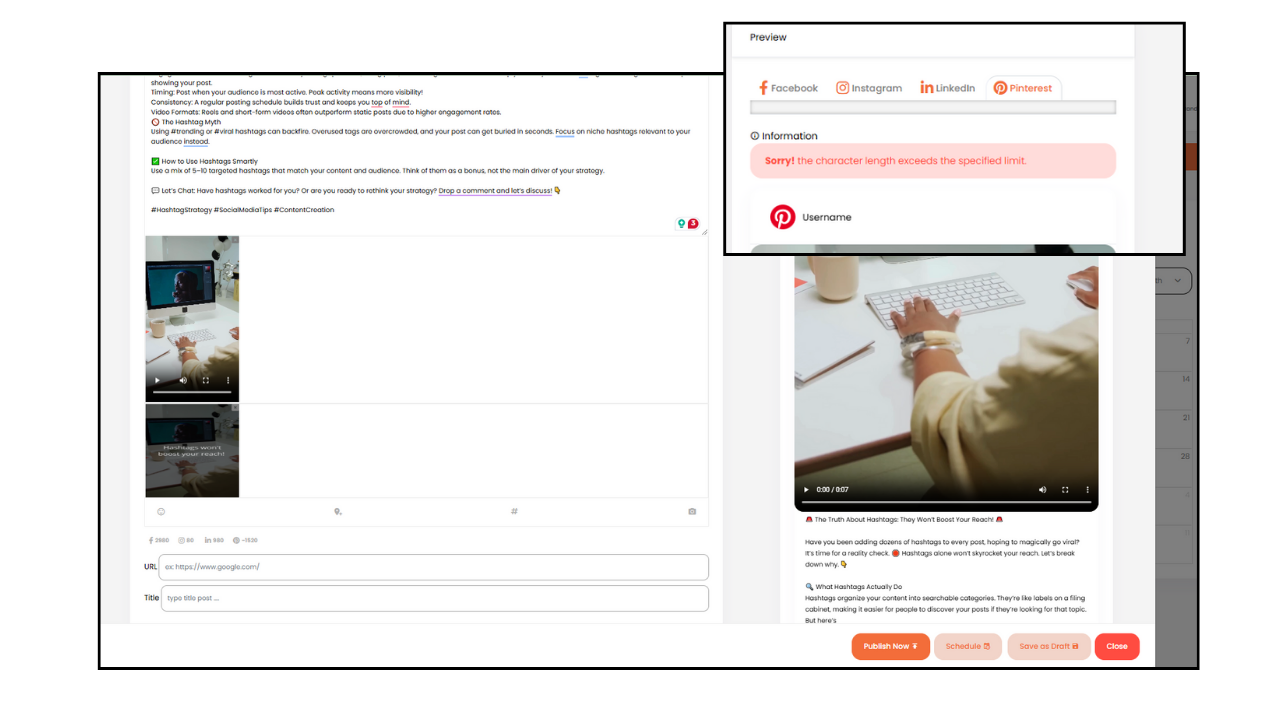
  3. If your caption exceeds the limit, you’ll see a notification on the preview page: “Sorry! The character length exceeds the specified limit.”
  4. Since you are publishing a single post across multiple platforms simultaneously, you may need to edit the caption for each platform.
How To Publish and Schedule Your Social Media Post Across Multiple Platforms Via Sociosight App?

[7] Customize Captions Per Platform:

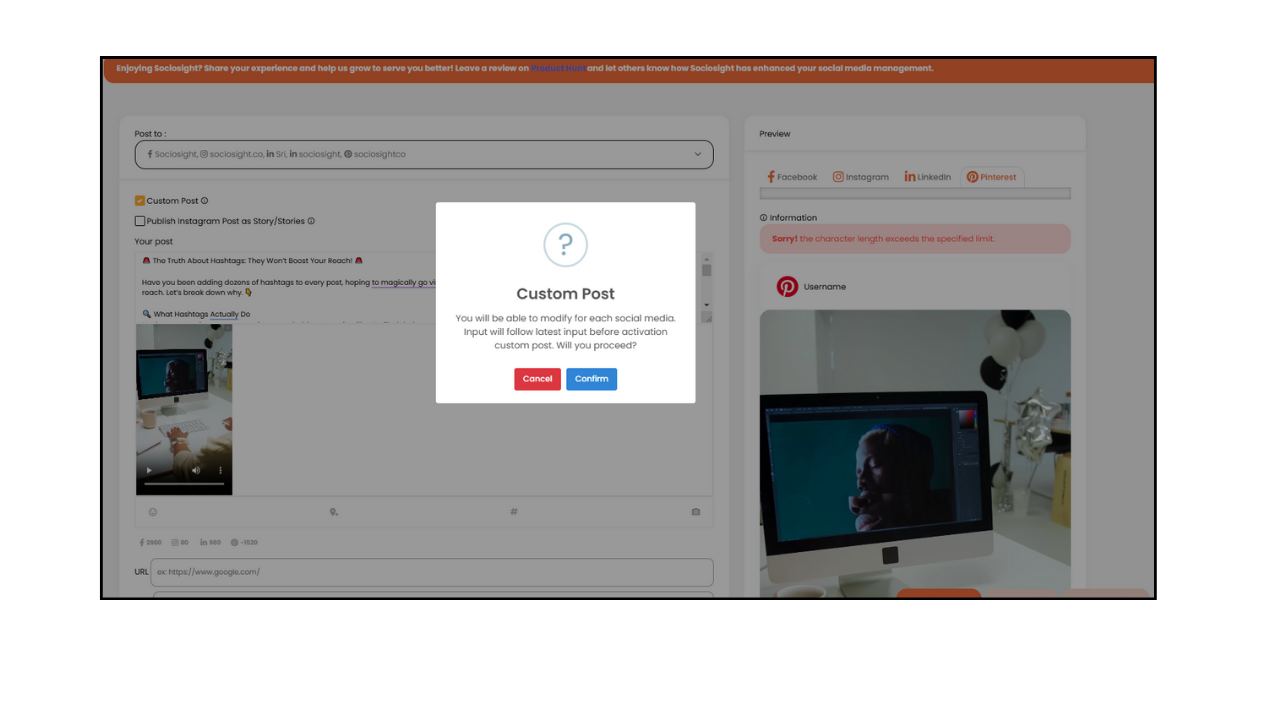
  1. To edit captions individually, check the Customize Post box.
  2. A message will appear about customizing posts—click Confirm.
  3. Edit the captions to meet the guidelines for each platform.
How To Publish and Schedule Your Social Media Post Across Multiple Platforms Via Sociosight App?

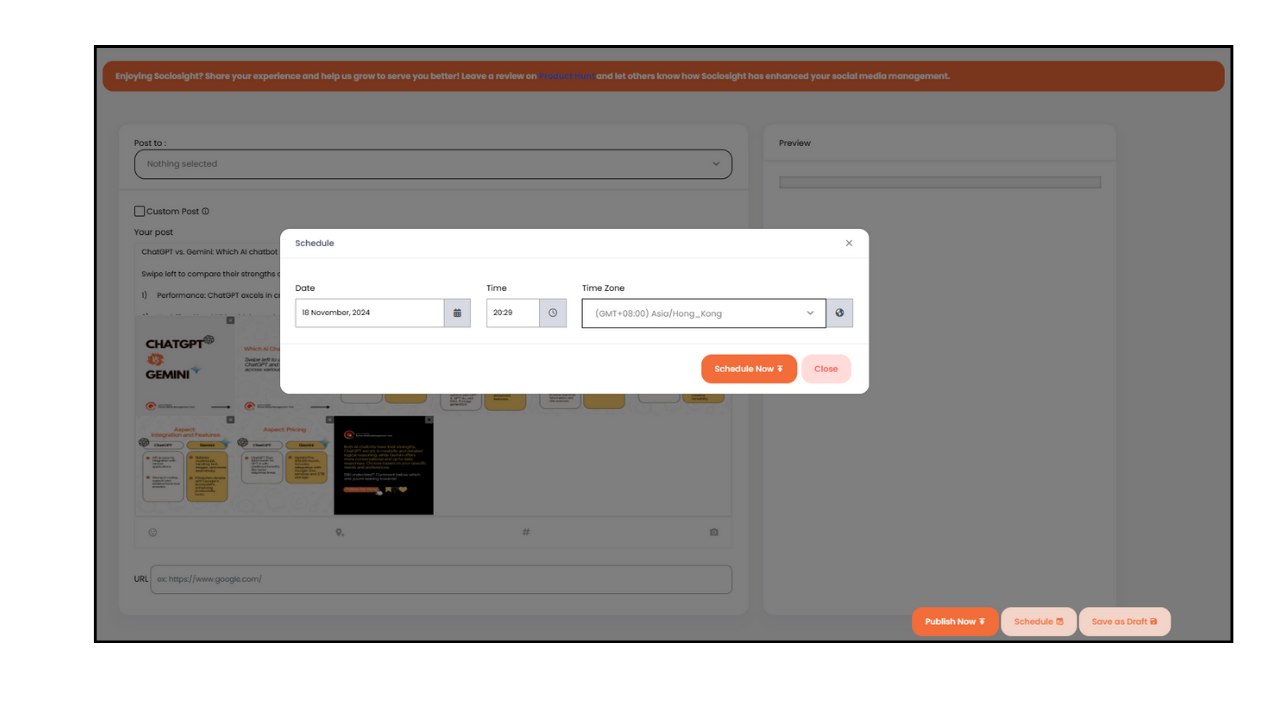
[8] Once you have finished customizing your posts for each social media profile, you have two options to proceed. If you want to publish your posts immediately, click the “Publish Now” button. If you prefer to schedule your posts for a specific time in the future, click the “Schedule” button. Click the Schedule button. Set the desired time and time zone (if needed), and click Schedule again to confirm.
How To Publish and Schedule Your Social Media Post Across Multiple Platforms Via Sociosight App?

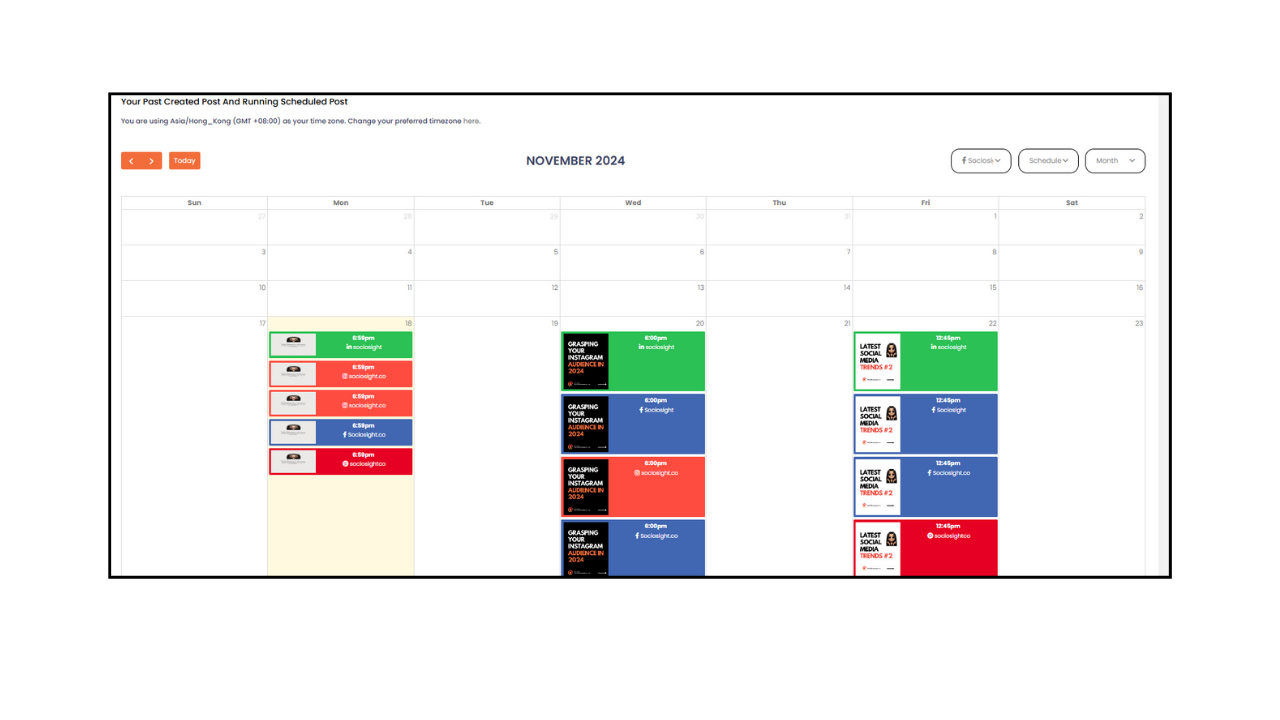
[9] Once scheduled, your post will appear on the calendar.

How to Post Instagram Stories Using Sociosight App #

Instagram Stories are a powerful way to connect with your audience, and Sociosight makes it effortless to schedule and publish them. Whether you’re sharing a single image, a series of videos, or a mix of both, Sociosight’s intuitive dashboard ensures that your content reaches your audience at the right time.

YouTube player

Follow the steps below to post your Instagram Story seamlessly:

[1] Open the Calendar from the Sociosight dashboard.

[2] Click the New Post button to open the New Post Dashboard.

[3] Choose the Instagram account where you want to publish your Story.

[4] Check the box labeled “Publish Instagram Post as a Story/Stories.

Note: You can post multiple images or videos as a Story. Each piece of media will be uploaded individually to Instagram with a slight delay, maintaining the order in which they appear in the dashboard.

Important Details:

  1. The leftmost position of your media will be published first.
  2. Stories published through this option will not appear on your feed.
  3. Captions added here will not appear on Instagram Stories.
  4. Video requirements: Minimum duration is 3 seconds, and the maximum is 60 seconds.

[5] Click the Camera icon and select Add Image/Video. Arrange your files in the desired order.

[6] To Publish Immediately: Click the Publish button. Once published, your post will appear in the Sent tab on the Calendar or Published Post Timeline tab on the History menu. To Schedule Your Story: Click the Schedule button. Set the time and time zone, then confirm. Your scheduled Story will appear on the Schedule tab on the Calendar or Scheduled Timeline tab on the History menu.

Viewing the Post List #

While you can view your scheduled posts, published posts (posts published via Sociosight to your social media accounts), and your feed (social media posts regardless of the platform used to publish) on the calendar, you can also view your content in the “History” menu with the following steps:

  1. Click on the “Schedule Timeline” Tab – to see the list of your scheduled posts. This tab provides an overview of the posts that are set to be published at specific dates and times.
  2. Navigate to the “Failed Schedule Timeline” tab to view the list of scheduled posts that failed to be published due to server issues on Sociosight’s end. You have the option to publish them again instantly or reschedule them by clicking the “duplicate” button located on the right side of each failed post.
  3. Access the “Published Post Timeline” tab to see the list of posts that have been successfully published on each selected social media profile.
  4. Visit the “Failed Post Timeline” tab to view the list of posts that failed to be published due to issues on the respective social media profiles. For example, a post may fail to publish if the uploaded image or video format does not comply with the specific guidelines of the targeted social media profile. You can attempt to publish them again by clicking the “duplicate” button and adjusting the post to meet the requirements of the social media profileAccess the “Published Post Timeline” tab to see the list of posts that have been successfully published on each selected social media profile.
  5. Visit the “Failed Post Timeline” tab to view the list of posts that failed to be published due to issues on the respective social media profiles. For example, a post may fail to publish if the uploaded image or video format does not comply with the specific guidelines of the targeted social media profile. You can attempt to publish them again by clicking the “duplicate” button and adjusting the post to meet the requirements of the social media profile.
  6. “Scheduled YouTube Timeline” and “Published YouTube Timeline” Tabs are specifically dedicated to displaying the list of posts for your YouTube profile. The “Scheduled YouTube Timeline” tab shows the scheduled posts, while the “Published YouTube Timeline” tab displays the posts that have been successfully published on YouTube.

Conclusion #

Those are the steps to publish and schedule your posts across multiple social media profiles using the Sociosight dashboard. If you encounter any difficulties while following these steps, please feel free to reach out to us through the web chat feature or DM us on Instagram @sociosight.co. We are here to assist you and ensure that your social media management process runs smoothly.

With Sociosight, you have the power to streamline your social media presence, save time, and effectively engage with your audience across various platforms. So, start utilizing Sociosight today and take your social media management to the next level.

What are your Feelings

Share This Article :

  • Facebook
  • X
  • LinkedIn
  • Pinterest
Still stuck? How can we help?

How can we help?

Updated on 19 November 2024
How to Schedule and Publish Your YouTube Video through The Sociosight App?How to Use Sociosight’s AI Content Writing Wizard to Generate Engaging Social Media Content
Table of Contents
  • Video Tutorial to Publish and Schedule Social Media Post Across Platforms Via Sociosight Dashboard
  • Steps to Publish and Schedule Your Posts Through Sociosight, one of Most Intuitive Social Media Scheduling Tools in the Market.
    • Sign Up and Connect Sociosight App
    • Schedule a Post using the Sociosight Calendar, Social Media Management Tools
    • How to Post Instagram Stories Using Sociosight App
    • Viewing the Post List
  • Conclusion
Logo Sociosight - Aplikasi Kelola Media Sosial - Social Media Management Tool

© 2025 Sociosight.co. All rights reserved.

Instagram Facebook-f Twitter Linkedin Pinterest-p Youtube

About

  • About Sociosight
  • Blog
  • Privacy Policy
  • Terms of Service
  • Sitemap
  • RSS

Sociosight App

  • Sign in/up
  • Pricing
  • Tutorial Video
  • Roadmap
  • Help
  • Contact Us
  • Schedule a Demo
  • Lifetime Subscription Deals
  • Join as Affiliate

Support hours:

9am – 5pm WIB (GMT +7)

Monday – Friday